
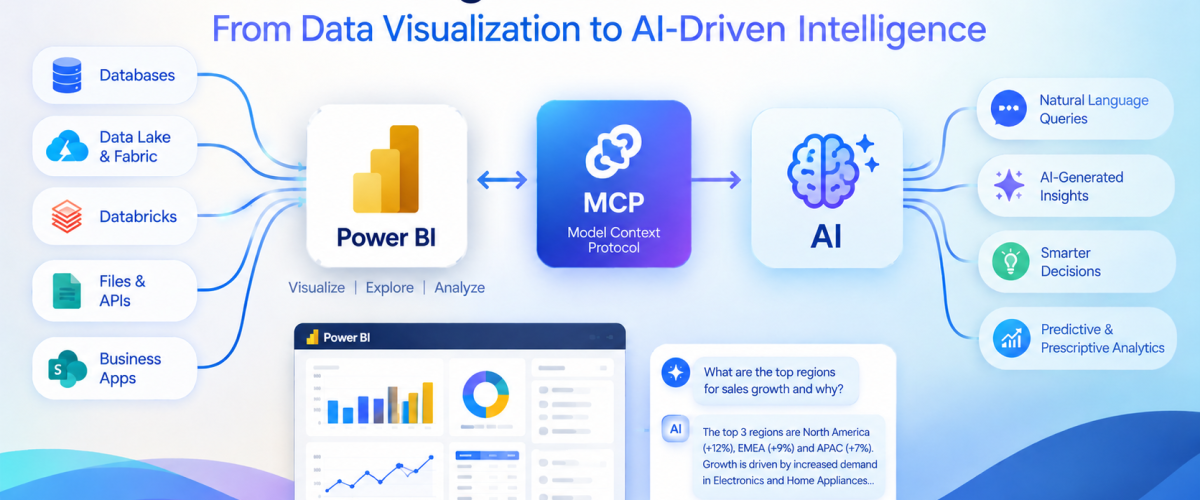
AI assistants like Copilot and Claude are no longer just answering questions in a side chat window; they are starting to reach directly into the tools we use every day, including Power BI. The technology making this possible is the Model Context Protocol (MCP), an open standard for connecting AI agents to external systems.
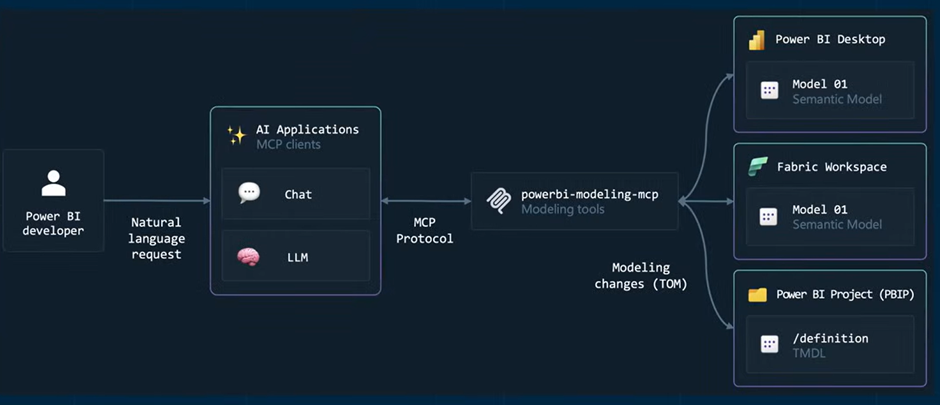
Before MCP, connecting an AI assistant to a tool like Power BI meant writing custom integration code – REST API calls, manual DAX construction, bespoke authentication handling, and repeating that work for every AI client you wanted to support. If you wanted GitHub Copilot, Claude, and a custom internal agent to all talk to Power BI, that was potentially three separate integrations to build and maintain.
MCP standardizes this. It defines a common interface so that any MCP-compatible AI client can discover and invoke tools exposed by any MCP-compatible server, without custom glue code per combination.
The Three Roles in an MCP Setup
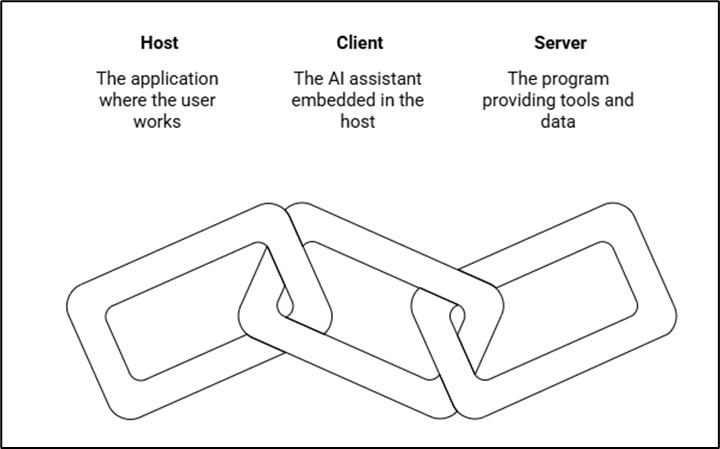
Every MCP interaction involves three components:
- Host: The application you are working in (e.g., VS Code, Claude Desktop)
- Client: The AI assistant embedded in the host (e.g., GitHub Copilot, Claude)
- Server: The program exposing tools and data to the client (e.g., a Power BI MCP server)
Two Flavors of Power BI MCP Server
Microsoft has two distinct official MCP servers for Power BI, built for different jobs.
- Remote MCP Server
The remote server is a hosted endpoint designed for asking questions of existing semantic models. It translates natural language prompts into Power BI operations, generating and executing DAX queries against a published semantic model while respecting existing permissions and security policies. - Local MCP Server
The local server runs on your own machine and targets development work like building, modifying, and managing semantic models programmatically across Power BI Desktop, Fabric workspaces, and Power BI Project (PBIP) files.
This is the server most useful to a Power BI developer day-to-day. It supports agentic development workflows against TMDL and PBIP files, and can execute and validate DAX queries directly, which is useful for testing new measures or troubleshooting calculations without leaving your editor.
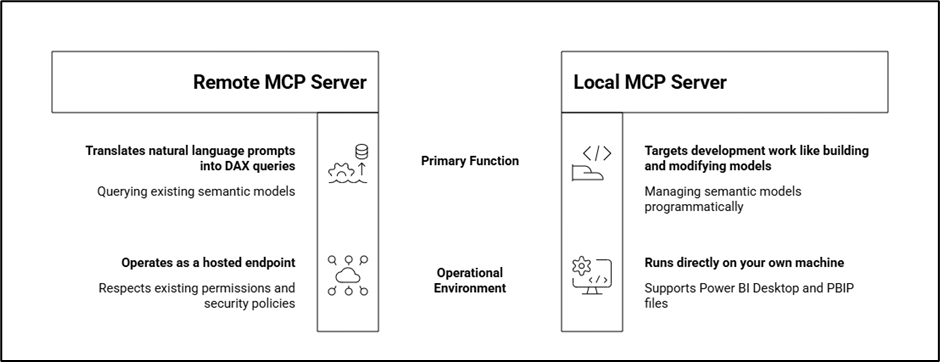
Remote MCP Server | Local MCP Server | |
Runs | Cloud-hosted endpoint | Locally, on your machine |
Purpose | Query existing models, generate insights | Build/modify semantic models |
Typical user | Analysts, business users | BI developers |
Data source | Published semantic models | Open Power BI Desktop / Fabric / PBIP files |
Status | Preview | Public Preview |
Setting Up the Local Modeling Server (Typical Workflow)
The most common setup path developers use is VS Code + GitHub Copilot, though Claude Desktop is also well supported. At a high level:
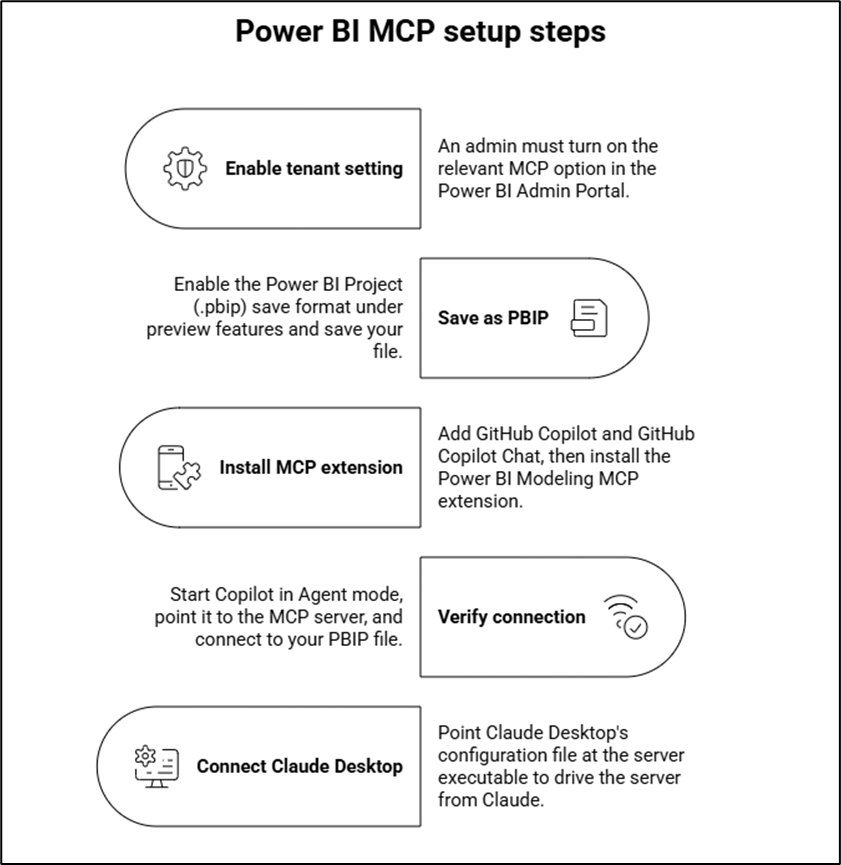
- Enable the tenant setting: An admin must turn on the relevant MCP option in the Power BI Admin Portal before the feature is usable in the organization.
- Save your file as PBIP, not PBIX: The local server connects to the Analysis Services instance that Power BI Desktop runs locally when a .pbip file is open; this requires enabling the Power BI Project (.pbip) save format under preview features first.
- Install the MCP extension in VS Code: Add GitHub Copilot and GitHub Copilot Chat, then install the Power BI Modeling MCP extension from the Extensions view.
- Verify the connection: Start Copilot in Agent mode, point it to the MCP server, and connect to your open PBIP file. A simple test prompt like “list tables” confirms the server can see your model, including hidden and auto-generated date tables.
- Optionally connect Claude Desktop too: The VS Code extension installs the server executable locally; you can point Claude Desktop’s claude_desktop_config.json at that same executable to drive the same server from Claude instead of (or alongside) Copilot. This requires a full restart of Claude Desktop to pick up the new configuration.
Once connected, you can issue prompts like “create a measure for Total Sales” or “add a relationship between the Date table and Sales table,” and the assistant executes the change directly against your open model.
Limitations:
- It is still in preview: Tool definitions, request formats, and response schemas may change as the feature is developed further. Treat it as an emerging capability, not a stable foundation to build critical workflows on yet.
- RLS is not enforced for service principal authentication on the remote server: When a service principal executes queries, it has access to all data the principal is authorized to access. Row-level security does not narrow that further.
- The local server can’t touch report pages or diagrams: It is scoped to modeling operations only like tables, measures, relationships, and not visual layout.
- LLMs can make mistakes on live models: Because changes are applied directly to your open file, Microsoft’s own guidance is to back up your model before running operations through the server, and to review chat sessions carefully since sensitive model details can end up in logs or responses.
- Admin approval is a hard prerequisite: Neither server is accessible until a tenant admin explicitly enables the relevant setting, this is not something an individual developer can turn on unilaterally in an enterprise tenant.
References:
- Microsoft Learn — Power BI MCP servers overview
- Microsoft Learn — Get started with the remote Power BI MCP server