MongoDB Data Platform Integration with Databricks on AWS
This blog provides a comprehensive overview of integrating a MongoDB Atlas cluster with a custom Databricks workspace on AWS. The integration uses VPC Peering to establish a secure, private connection between the two platforms, enabling seamless data access for analytics and development workloads.
What We Covered in This Blog
In this blog, we walk through the complete setup and validation process step by step:
Network Setup on AWS – Designing a secure and segmented environment with public/private subnets and route tables.
Databricks Workspace Configuration – Deploying the workspace, configuring clusters, compute, IAM, and installing Maven libraries.
MongoDB Cluster Configuration – Ensuring correct tier requirements (M10 or higher) and deployment.
VPC Peering Setup – Establishing private connectivity between MongoDB Atlas and AWS VPC (initiation in Atlas and acceptance in AWS).
Validation & Success – Confirming active VPC peering and secure communication.
Data Read Validation in Databricks – Using the MongoDB Spark Connector with PySpark to read collections into Databricks Data Frames.
Network Setup on AWS
A secure and segmented network environment was established:
Public Subnets: Resources have public IPs with inbound/outbound access through an Internet Gateway (IGW). Typically used for NAT gateways and load balancers.
Private Subnets: Resources have no direct inbound internet access; outbound traffic is routed via a NAT Gateway to secure Databricks clusters and databases.
Route Tables: Custom route tables enforce strict separation of traffic between public and private resources.
Databricks Workspace Configuration
Workspace Deployment
Deployment Mode: AWS with customer-managed VPC
Subscription: Databricks Premium Plan
Region: Same region as the MongoDB Atlas cluster (to ensure low latency and optimal performance)
Cluster Configuration
An All-Purpose cluster named demo–poc-private-multi was created within the workspace to facilitate development and interactive processing.
Compute Selection
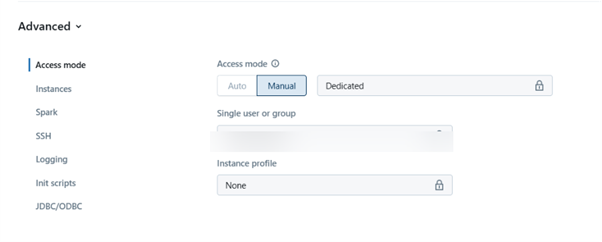
A Manual configuration with dedicated compute was selected. The shared compute option is incompatible with certain data sources, including the MongoDB Spark connector, when using Unity Catalog, as it generated the error: datasource v2 is not supported in Unity Catalog.
Identity and Access Management (IAM)
Access to the cluster is managed through Databricks groups for better scalability and control.
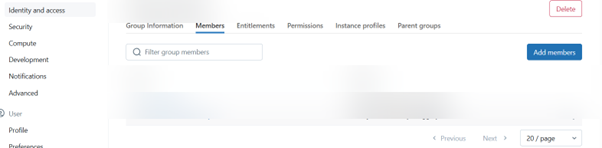
A group named demo_group was created.
The relevant user was added to this group.
During cluster creation, this group was granted SSH access permissions, allowing authorized developers to manage and troubleshoot the cluster.
Installing a Maven Library in the Cluster:
Go to the Compute tab in Databricks.
Select the Cluster you want to configure.
Click on the Libraries
Click Install New.
Choose Maven as the source.
Enter the required library coordinates (e.g., group ID, artifact ID, version).
Click Install to add the library to your cluster.
MongoDB cluster Configuration:
Cluster Tier Requirement
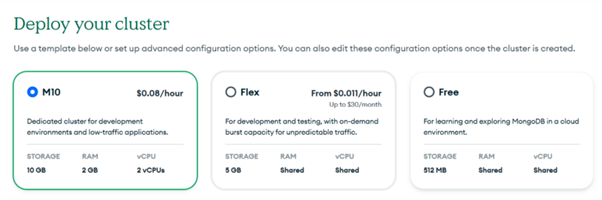
A critical prerequisite for VPC Peering is the MongoDB cluster tier. The cluster must be M10 or higher, as lower-tier clusters (e.g., M0, M2, M5) do not support peering connections.
Deployment
The cluster was deployed with the correct name, cloud provider (AWS), and region to ensure optimal performance and low-latency connectivity with the Databricks workspace.
VPC Peering Setup
Initiating Peering from MongoDB Atlas
The outbound peering connection was initiated from the MongoDB Atlas console:
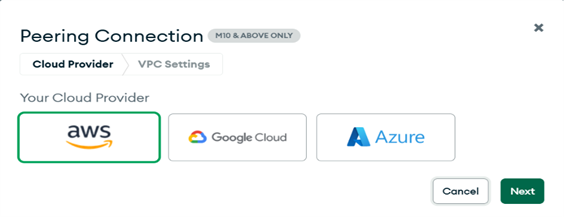
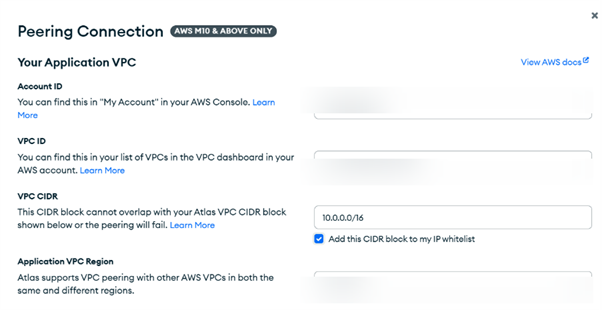
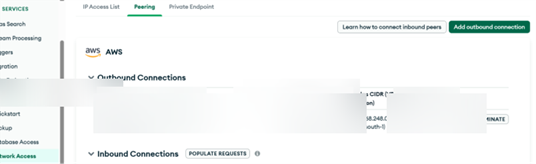
Logged in to MongoDB Atlas. Navigated to Network Access. Selected VPC Peering. Clicked Add Outbound Connection. Chose AWS as the cloud provider and clicked Next.
Provided the required AWS details:
1. AWS Account ID
2. VPC ID (of the Databricks VPC)
3. VPC CIDR Block
4. AWS Region
5. Clicked Initiate Peering.
Accepting Peering in AWS Console
After initiation, the peering request must be accepted in the AWS console:
Verified the peering status in Atlas showed as Pending Acceptance.
Navigated to the VPC Peering Connections section in the AWS console.
Located the incoming request from MongoDB Atlas.
Selected the request and clicked Actions -> Accept Request.
Validation & Success
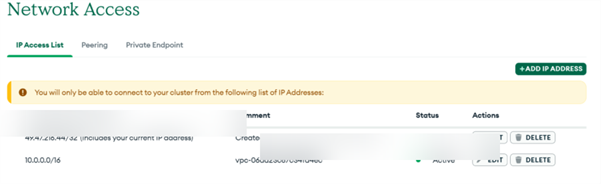
Once the VPC peering connection status became Active, the route for the MongoDB VPC CIDR was automatically propagated, enabling direct, secure communication.
Validation: Successful Data Read from MongoDB in Databricks
Confirmation of End-to-End Connectivity
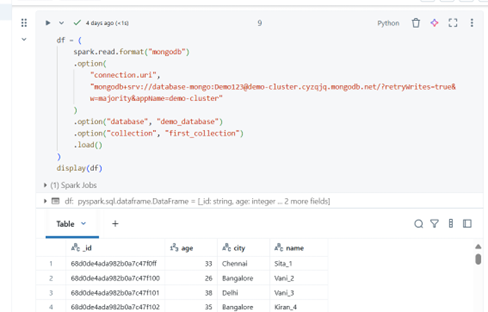
The successful configuration of the VPC peering connection and cluster settings has been validated by executing a data read operation from the MongoDB Atlas cluster directly within a Databricks notebook. This confirms that the end-to-end private network path is fully operational.
Code Execution
A PySpark DataFrame was created using the MongoDB Spark Connector to read data from the first_collection in the demo_database.
Result:
The code executed successfully, returning a DataFrame with the records from the first_collection in MongoDB. This confirms that:
The VPC peering connection is correctly established and is routing traffic.
The Databricks cluster can resolve the MongoDB hostname to a private IP.
The network security groups and ACLs allow the necessary traffic on port 27017.
The MongoDB Spark Connector is correctly installed and configured.
Conclusion
This guide demonstrated a complete integration of MongoDB Atlas with a custom Databricks workspace on AWS. By leveraging VPC Peering, we established a high-performance, secure, and private connection, ensuring that sensitive data never traverses the public internet.