
Have you ever wanted the data pipelines to function like clockwork, without any manual interventions, and with full control over when and how they run?
With Databricks Workflows, we can seamlessly combine data engineering, analytics, and machine learning in one place, with orchestration tightly integrated into the Lakehouse. Unlike ADF, they eliminate the need for moving data between services and reduce latency by running tasks, SQL, and notebooks directly where the data resides. Databricks Workflows enable this through a powerful and flexible orchestration framework that supports parameters, triggers, dependencies, and comprehensive monitoring—without the hassles of manual scheduling.
In this guide, you’ll learn exactly how to build your first Databricks Workflow, step by step, so you can move from manual runs to automated, production-ready pipelines.
The Databricks Lakehouse platform’s built-in scheduling, parameterization, and monitoring capabilities enable teams to coordinate notebooks, SQL tasks, and intricate ETL pipelines with Databricks Workflows.
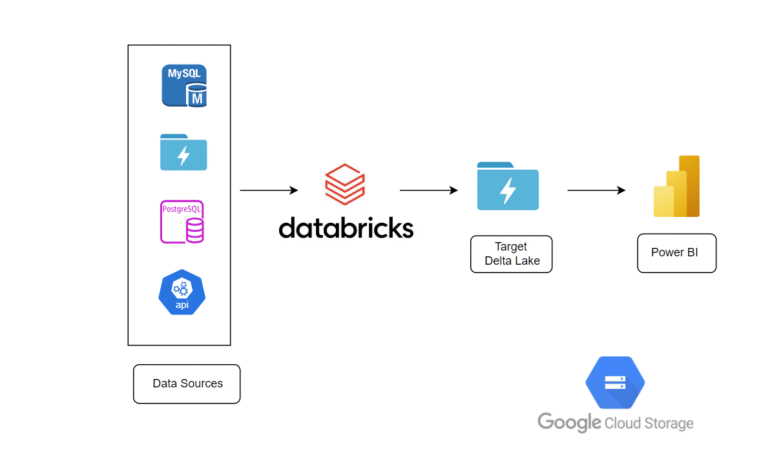
By the end of this guide, you’ll be able to build end-to-end workflows that chain tasks within a medallion architecture, enabling you to accelerate the transition from prototype to production with greater efficiency and structure.
Main Components of Databricks Workflow
- Workflow, a modern orchestration framework in Databricks that lets you automate and manage your data pipelines, tasks end-to-end.
- Job, the top-level unit of workflow, which defines the complete process you want to automate, like an entire ETL pipeline. A Job can contain one or many Tasks.
- Task, a single unit of execution within a Job. Tasks can be independent, dependent on each other, run in parallel, or be triggered conditionally, which gives us full control over the workflow’s flow and logic.
Different types of tasks include a notebook, a Python script, a SQL query, or even a JAR file. - Parameters allow you to pass dynamic values into the Tasks during runtime, to make workflows reusable and adaptable for different inputs.
- Triggers, control your workflow runs. You can schedule Jobs to run on a specific cadence, run them once, or kick them off based on file arrivals.
- Cluster defines the compute resources used to run your Tasks. You can choose existing clusters or configure new ones for optimized performance and cost.
- Alerts & Monitoring include built-in monitoring and alerting, where you can track run status, view logs, and configure email for successes or failures of the job.
Let’s get into the Steps to create a basic workflow by considering a scenario,
- Task 1: Extract, transform, and load data from the source into the target Delta Lake.
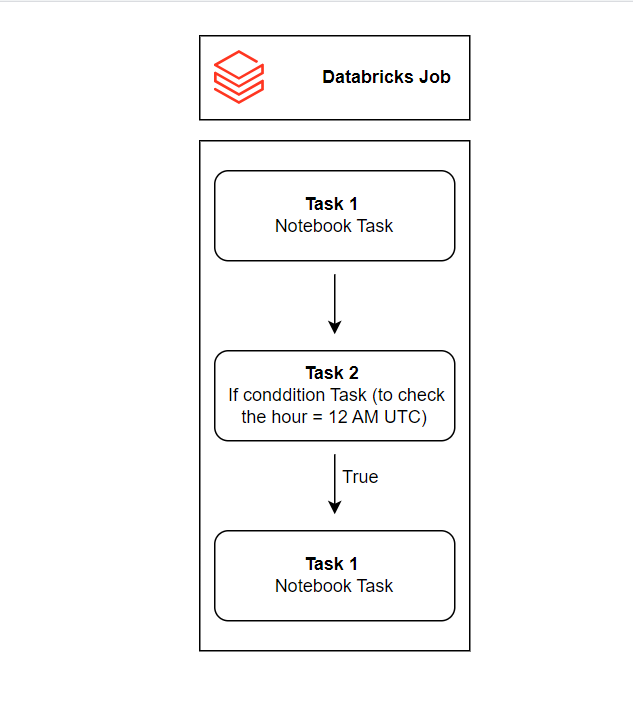
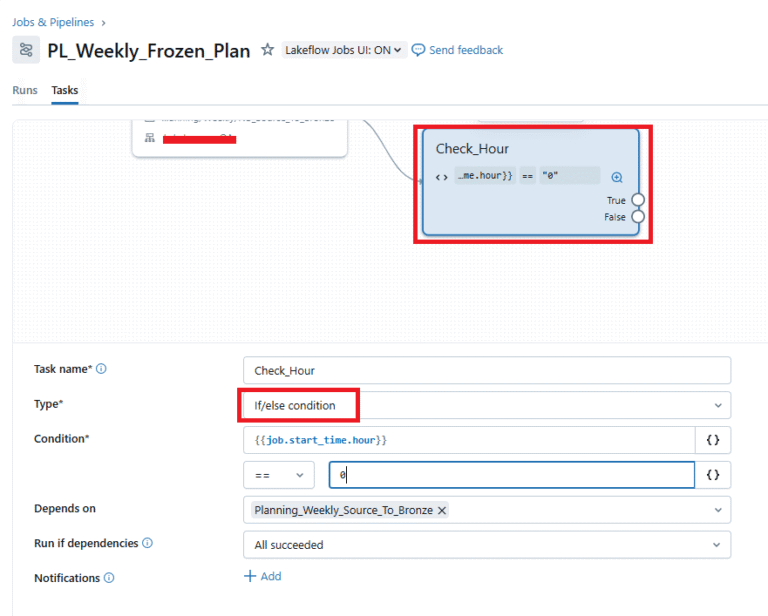
- Task 2: Validate whether the job’s trigger hour is 12 AM UTC.
- Task 3: If the condition is met, execute a notebook that updates flag values based on whether records were deleted in the source.
- Schedule of the Job: this complete job should run every one hour once.
Step 1: In the Databricks UI, navigate to the Jobs and Pipelines section.
Step 2: Create a Databricks Job (Demo_Pipeline). Create Task 1, which is a notebook Task. Map the Databricks notebook under the Databricks workspace while creating the task.
Step 3: Create a cluster with the required configuration, which runs the task.
Step 4: Add the parameter lists that are required for Task 1 to make it dynamic.
Step 5: Add the required email ID in the notification section under the task creation to notify of the success or failure of the job.
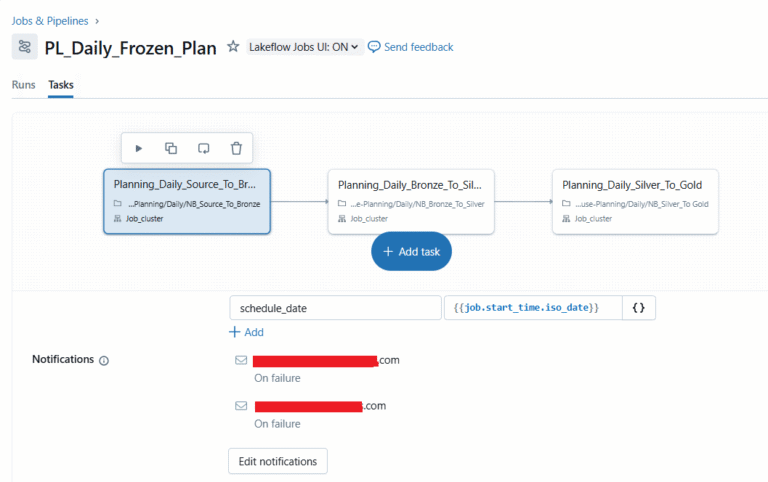
Step 6: Now, click on ADD TASK to add Task 2. Drop down the list in the task section to choose the if/else condition task.
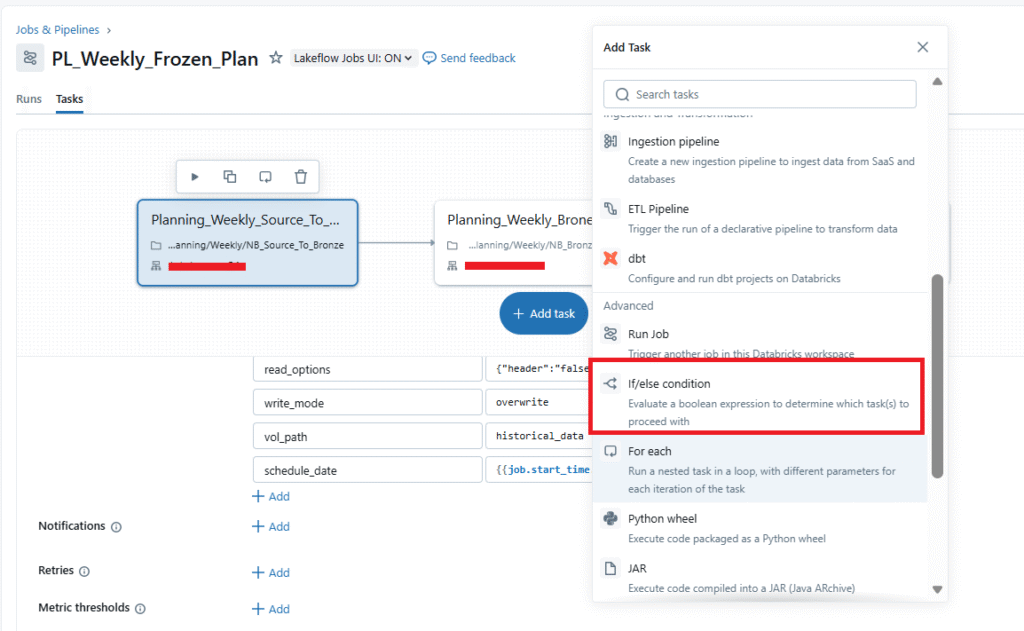
Step 7: Alter the task sections so to check the Start time of the job is equal to 12 AM UTC (corresponding time in workflow will be 0).
Step 8: Click on ADD TASK to add Task 3 and choose notebook task. Repeat Steps 3 to 5.
Step 9: Now the Job is all set. Let’s assign a trigger to run the job every one hour automatically. Choose the scheduled option in the trigger section and give the time in Quartz Cron syntax as the initial trigger time of the job.
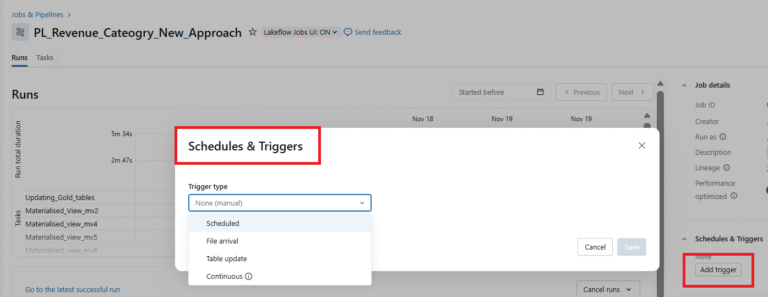
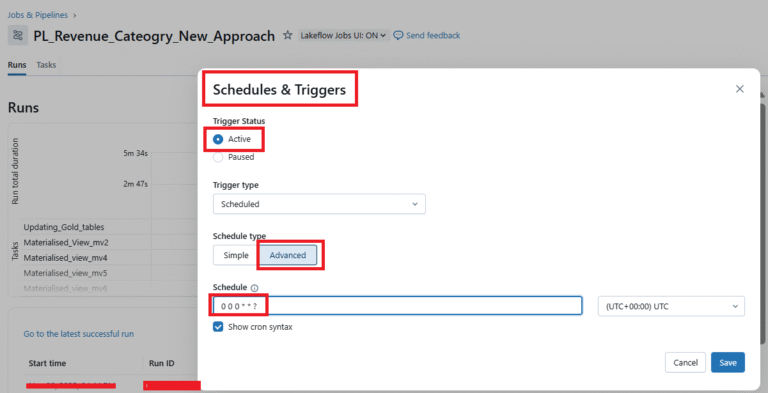
NOTE: We can also add necessary jar files, libraries using the Dependent Section.
Choose the required library type, like:
- PyPI for Python packages
- Maven for Java/Scala.
- Cran for R.
Thus, we have created the workflow with three tasks and will be running as scheduled every one hour.
Points to Remember While Creating a Workflow in Databricks
- Use Parameters – Avoid hardcoding values; make workflows reusable across environments.
- Manage Dependencies – Clearly define task dependencies to prevent partial or incorrect runs.
- Enable Notifications – Set up alerts for failures and successes to act quickly on issues.
- Control Costs – Schedule wisely and right-size clusters to avoid unnecessary expenses.
- Set Access Controls – Ensure only authorized users can run or modify workflows.
Summary:
This blog demonstrated how Databricks Workflows significantly enhance the data lifecycle by bringing orchestration, processing, and automation directly into the Lakehouse. Their ability to run data engineering, analytics, and machine learning tasks in place, without service-to-service movement, which reduces latency, simplifies architecture, and improves overall performance. Databricks Workflows add value by providing a unified, reliable, and scalable way to schedule, coordinate, and monitor pipelines, enabling teams to build production-ready data processes with far less complexity and operational overhead.