

Modern analytics isn’t just about dashboards — it’s about speed, volume, and freshness.
With more data flowing in (sensor data, IoT, streaming logs, huge transactional systems), organisations want:
- fast interactive visuals
- up-to-date data (near real-time)
- scalable architecture without massive refresh times
Historically, in Microsoft Power BI, you’ve had trade-offs:
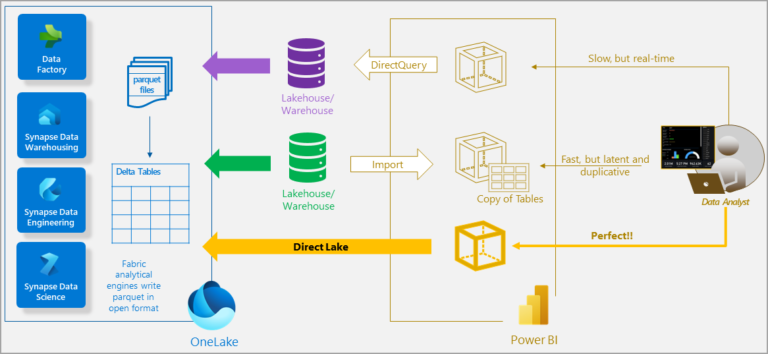
- Import Mode → blazing fast, but data is as recent as the last refresh.
- DirectQuery Mode → always live data, but performance depends heavily on the source.
- Dual/Composite → mix of both, but still some compromises.
Enter DirectLake, a new storage mode under Microsoft Fabric, letting you combine freshness + performance by leveraging your Lakehouse. Simply put: you can build Power BI semantic models on data in your data lake (OneLake) without duplicating it, yet still get near Import-mode query speed.
In this blog, we’ll walk through:
- What DirectLake is (and how it works)
- Why it matters in a lakehouse world
- How to set it up (step-by-step)
- Real-world example
- When not to use it, limitations & best practices
- Summary & where to go next
What is DirectLake?
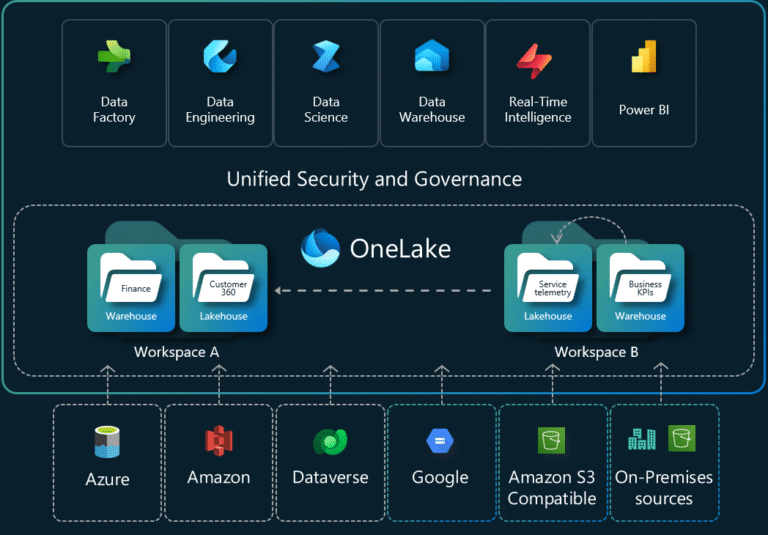
DirectLake is a table storage mode in Power BI semantic models (under Fabric) that connects directly to delta tables (or Parquet-based files) in OneLake (Fabric’s central data lake), and when queried, loads only the required columns into memory for VertiPaq engine processing (just like Import mode) rather than issuing live queries to the source.
Key Features:
- Tables stay in your lakehouse/warehouse, no massive duplication.
- On query execution, only required columns are loaded (“transcoding”) → less memory usage.
- Returns performance close to Import mode because it uses the VertiPaq engine.
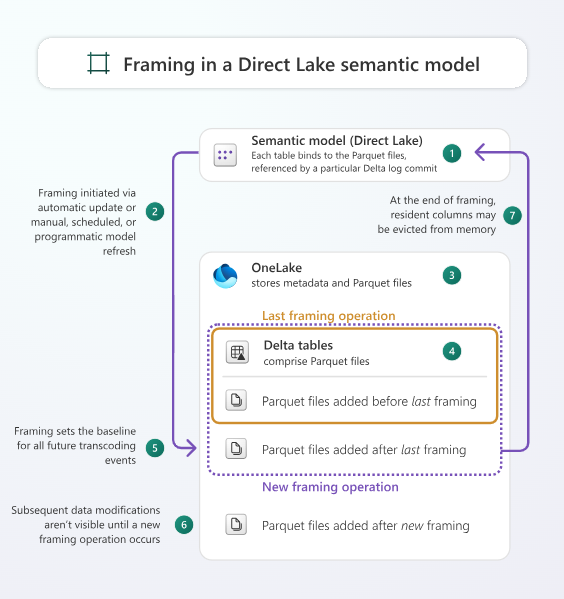
- Near real-time data availability: “refresh” = metadata framing, not full load.
Why it matters in a Lakehouse World
Shift in architecture:
Modern organisations are shifting to lakehouse architectures: raw data landing in a lake, transformed into delta tables, consumed by various workloads (analytics, ML, dashboards). This means:
- Less duplication of data.
- Teams share one source of truth.
- Analytics models need to adapt to
DirectLake fits perfectly here: it lets BI teams plug into the lakehouse rather than copy everything into Power BI import tables.
Real-time + Scale:
If your dataset is hundreds of millions or billions of rows, import mode may choke (refresh time, memory). DirectQuery may be slow for each visual. DirectLake gives a middle path: large scale + near real-time.
Business Example:
Imagine a retail organisation ingesting transaction logs from thousands of stores into OneLake every few minutes. They want dashboards that show “last 15 minutes sales by product”. With the Import mode, it would take too long to load. With DirectQuery, each visual query may hit the data source slowly. With DirectLake, the delta tables in OneLake are used by the semantic model, and the visuals query quickly
How to Set Up DirectLake (Step-by-Step)
1. Prepare Your Lakehouse/Warehouse
- In Fabric, ensure you have a Lakehouse or Warehouse with delta tables ready.
- Data should be in Parquet/delta format, well-partitioned.
- Example: A table OrdersDelta with parquet files for each day.
2. Create a Semantic Model in DirectLake Mode
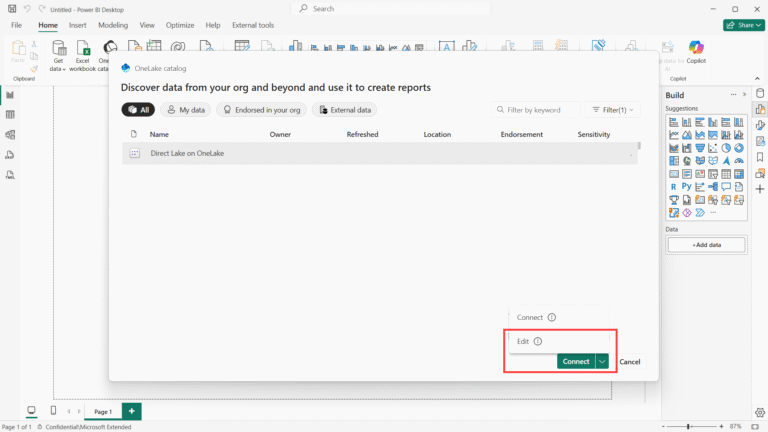
- In Power BI Desktop (or Service), go to Get Data → OneLake Catalog.
- Select the Lakehouse/Warehouse containing your delta tables.
- Choose “Direct Lake” storage mode (or ensure it’s enabled).
- Import tables you need (they will “connect” live to lakehouse).
- Model relationships, add measures, etc.
3. Configure and Refresh:
- When you publish the model, a framing operation occurs: metadata for delta tables is aligned.
- On visuals, only required columns are loaded (transcoding).
- You can still set up incremental refresh or other policies upstream in your lake.
4. Build Reports:
- Create visuals as usual in Power BI.
- Use page refresh or bookmarks for near real-time updates.
- Because the semantic model uses the VertiPaq engine, performance is excellent.
5. Monitor & Tune:
- Monitor capacity usage and memory paging.
- Check guardrails (max rows, file count) for your Fabric SKU
Real-World Example:
Scenario:
Retail company “FashionCo” has a Lakehouse SalesLake in Fabric. Ingesting daily delta tables: SalesTransactions, ProductCatalog, StoreInfo. They want a dashboard showing sales by product category updated every hour.
Approach:
- In Lakehouse: delta table SalesTransactions updated hourly.
- Semantic Model in Power BI: connect to SalesLake via DirectLake mode, pick SalesTransactions, ProductCatalog, StoreInfo.
- Create measures: [Total Sales] = SUM(SalesTransactions[Amount])
- Report: update page every hour; visuals show within seconds.
Benefits:
- No full data load needed; only the latest files.
- Dashboard responds quickly (because VertiPaq).
- Analysts don’t worry about ETL refresh windows as much.
When Not to Use DirectLake + Limitations
Considerations:
- Requires Fabric capacity (not free tier), and your data must live in Delta Lakehouse architecture.
- Some features are unsupported or limited: e.g., calculated columns referencing DirectLake tables, some fallback behaviours in Direct Lake on SQL.
- If the dataset is small (< a few million rows) and doesn’t need near real-time, Import mode might still be simplest.
- Data prep must handle transformations upstream (lakehouse) because the semantic model expects “clean” tables.
- Guardrails: too many small Parquet files, high cardinality without partitioning, can degrade performance.
Decision Table:
Scenario | Use DirectLake? | Use Import Mode? |
100 + million rows, lakehouse ready, need near real-time | ✅ Yes | ❌ Probably no |
Small dataset, refresh daily, simple model | ❌ Might be overkill | ✅ Yes |
Legacy relational database, heavy modelling in Power BI | ❌ Unless migrating to a lakehouse | ✅ Import or Hybrid |
Best Practices & Tips:
- Organise delta tables with good partitioning (e.g., by date).
- Limit the number of small files (Parquet) per delta table — fewer large files are better for DirectLake performance.
- Model only necessary columns — extra columns still cost memory.
- Monitor memory usage and paging in your Fabric capacity.
- Combine DirectLake tables with Import tables via composite model if needed (e.g., small lookup tables imported).
- Leverage page/page refresh in Power BI for near real-time dashboards.
- Apply row-level security and monitor that it behaves well under DirectLake mode.
- Always prototype — test DirectLake vs Import for your workload; in some cases, still prefer Import.
Summary & Key Takeaways:
- DirectLake is a game-changer for lakehouse-based analytics with Power BI, giving near real-time access + high performance.
- Best suited when you have large data volumes, lakehouse architecture, and need fast interactive visuals.
- Takes away many traditional trade-offs between import and direct query.
- Not a one-size-fits-all; know your architecture, capacity, and data patterns.
- With correct setup and modelling, you can build high-scale, high-freshness BI solutions.
“In a lakehouse world, your BI model doesn’t drag data in — it directly reads from the lake, giving you responsive analytics and less overhead.”
Reference:
- https://learn.microsoft.com/en-us/fabric/fundamentals/direct-lake-overview
- https://powerbi.microsoft.com/en-us/blog/deep-dive-into-composite-semantic-models-with-direct-lake-and-import-tables/
- https://powerbi.microsoft.com/en-us/blog/deep-dive-into-direct-lake-on-onelake-and-creating-direct-lake-semantic-models-in-power-bi-desktop/
- https://www.sharepointeurope.com/guide-to-direct-lake-in-microsoft-fabric/