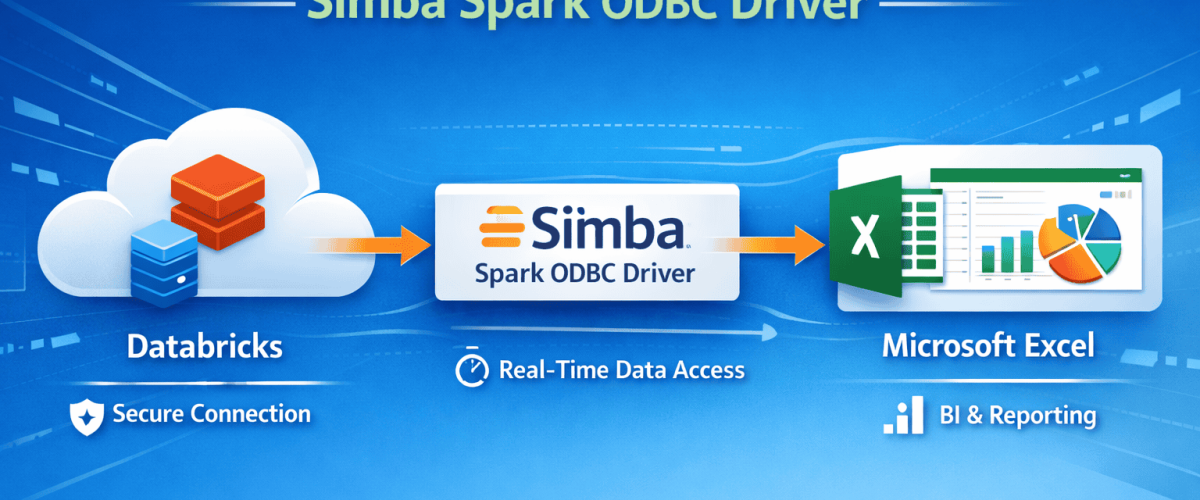
Connect Databricks to Excel Using Simba ODBC Driver

Connect Databricks to Excel Using Simba ODBC Driver

In today’s data‑driven world, analysts often need the power of Databricks with the familiarity and flexibility of Microsoft Excel. Whether it’s for quick data exploration, ad‑hoc reporting, or simply enabling business users to interact with curated datasets, integrating Databricks with Excel can unlock tremendous value.

In this guide, we’ll walk through a complete step‑by‑step process to connect Microsoft Excel to Databricks using the Simba Spark ODBC Driver—from downloading the driver to loading your first table into Excel.

Why Connect Excel to Databricks?

Databricks offers scalable compute and collaborative analytics, while Excel remains the most widely used tool for data analysis in business teams. Connecting the two allows you to:

  • Perform real‑time queries on Databricks tables directly from Excel
  • Automate dashboards or analysis powered by Databricks datasets
  • Empower business users without needing them to log into Databricks
  • Reduce manual CSV exports and data duplication

This document provides a complete, step-by-step guide to establishing a connection between Microsoft Excel and Databricks using the Simba Spark ODBC Connector. It includes downloading and configuring the driver, generating a Personal Access Token (PAT), and using username/password authentication where supported.

Prerequisites

– A Databricks workspace.

– A running Databricks cluster or SQL Warehouse (Endpoint).

– Microsoft Excel installed (its bitness must match the ODBC driver-32‑bit or 64‑bit).

– Windows machine with admin rights.

Download the Simba Spark ODBC Driver

  • Go to the All ODBC Driver Versions – Windows download page.
  • Click the 32-bit or 64-bit link, depending on your operating system’s architecture, to download the latest version of the ODBC driver.
  • Extract the contents of the downloaded .zip file. For extraction instructions, see your operating system’s documentation.
  • Double-click the extracted .msi file, and then follow the on-screen directions to install the driver in C:\Program Files\Simba Spark ODBC Driver.
  • Complete installation.

Gather Databricks Connection Details

– Open Cluster or SQL Warehouse.

– Copy Server Hostname, Port, and HTTP Path from the JDBC/ODBC details.

Picture1 - Simba

Generate a Personal Access Token (Recommended)

  1. User Settings → Developer-Access Tokens → manage-Generate New Token.
  2. Copy token. Later, you will not be able to view. click ok.
  3. Use UID=token and PWD=<PAT>.
Picture2 - Simba

Create the ODBC System DSN

– Open ODBC Data Sources (64-bit).

-system DSN

– Add → Simba Spark ODBC Driver.

-click on Configure

– Fill Host, Port=443, HTTP Path.

Picture3 - Simba
Picture4 - Simba

– SSL enabled.

Picture5 - Simba

– Authentication: Token or Username/Password.

– Test and save DSN.

Connect from Excel

– Data → Get Data → From Other Sources → From ODBC → Choose DSN → Simba spark for excel → Load.

Picture6 - Simba
Picture7 - Simba
Picture8 - Simba
Picture9 - Simba
close and load.

Troubleshooting

Here are common issues and how to resolve them:

Bitness Mismatch

If Excel is 32‑bit, install the 32‑bit ODBC driver
If Excel is 64‑bit, install the 64‑bit driver.

PAT Expired

Simply generate a new token and update the DSN.

Cluster Not Running

If you’re using a cluster (not SQL Warehouse), ensure it’s running before testing the connection.

Firewall or VPN Issues

Ensure your network allows outbound HTTPS traffic.

Summary

Connecting Databricks to Excel is simple once you understand the flow:

  1. Install Simba ODBC driver
  2. Get Databricks Hostname, Port, and HTTP Path
  3. Generate a PAT token
  4. Create and test an ODBC DSN
  5. Load Databricks tables in Excel

With this integration, your teams can enjoy the best of both worlds: the power of Databricks with the ease of Excel.

-Vasavi K S
Advanced Analytics Engineer

Facebook
WhatsApp
Twitter
LinkedIn
Pinterest